
Get notified
Settings → General → Notify me with:
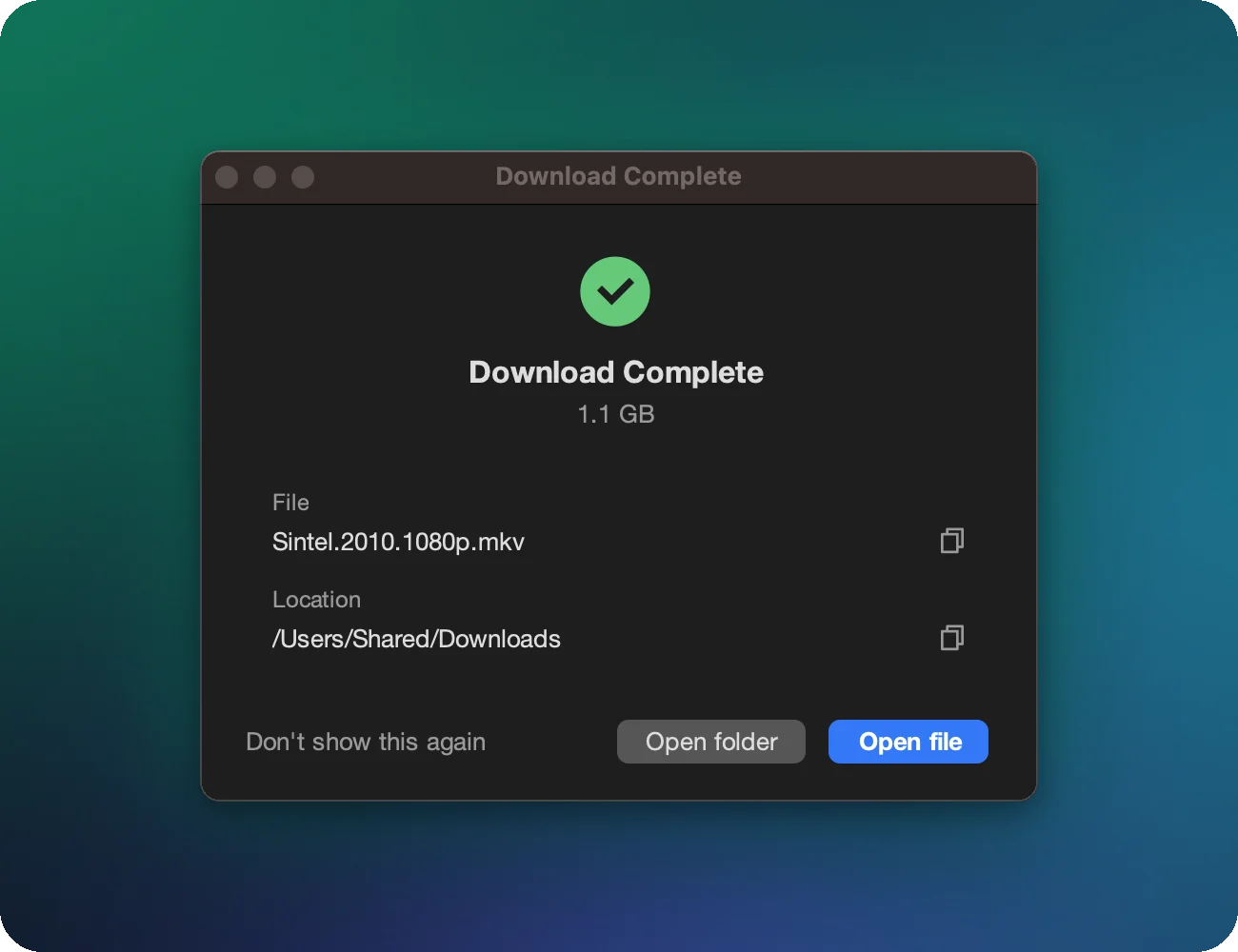
- Dialog: a Download Complete window with Open and Open folder buttons.
- Notification: a system notification (Windows toast, macOS banner, Linux desktop notification).
- Nothing: silent.
Scan downloads with your antivirus
- Open Settings → Advanced and turn on Scan downloads with an antivirus.
- Set Antivirus executable to your scanner's command-line program.
- Set Parameter to its arguments. Each finished file is passed to the scanner.
Examples of command-line scanners:
| Scanner | Executable | Typical parameters |
|---|---|---|
| Microsoft Defender (Windows) | C:\Program Files\Windows Defender\MpCmdRun.exe |
-Scan -ScanType 3 -File |
| ClamAV (Linux, macOS) | /usr/bin/clamscan |
--no-summary |
Also keep Mark downloaded files as coming from the internet on, so Windows SmartScreen and Office Protected View check files when you open them, just as for browser downloads.
Run a command when downloads finish
Turn on Run a command when downloads finish and enter a command. XDM runs it for a
completed download and passes the file’s path: put %file% where the path should go, otherwise it’s
added at the end. Use it to move files to a NAS, unpack archives or start a backup. For example:
/usr/local/bin/my-script.sh --input %file%
Keep awake and shut down
- Keep the computer awake blocks sleep and hibernation while a download is running, then lets the computer sleep normally.
- Shut down when downloads finish turns the computer off once the whole queue is done. Ideal with a scheduled overnight download.
Save your work
Shut down closes everything. Don't leave unsaved documents open when it's enabled.