
The download folder
Settings → Folders → Download folder is where finished files go by default. Click Change to pick another folder.
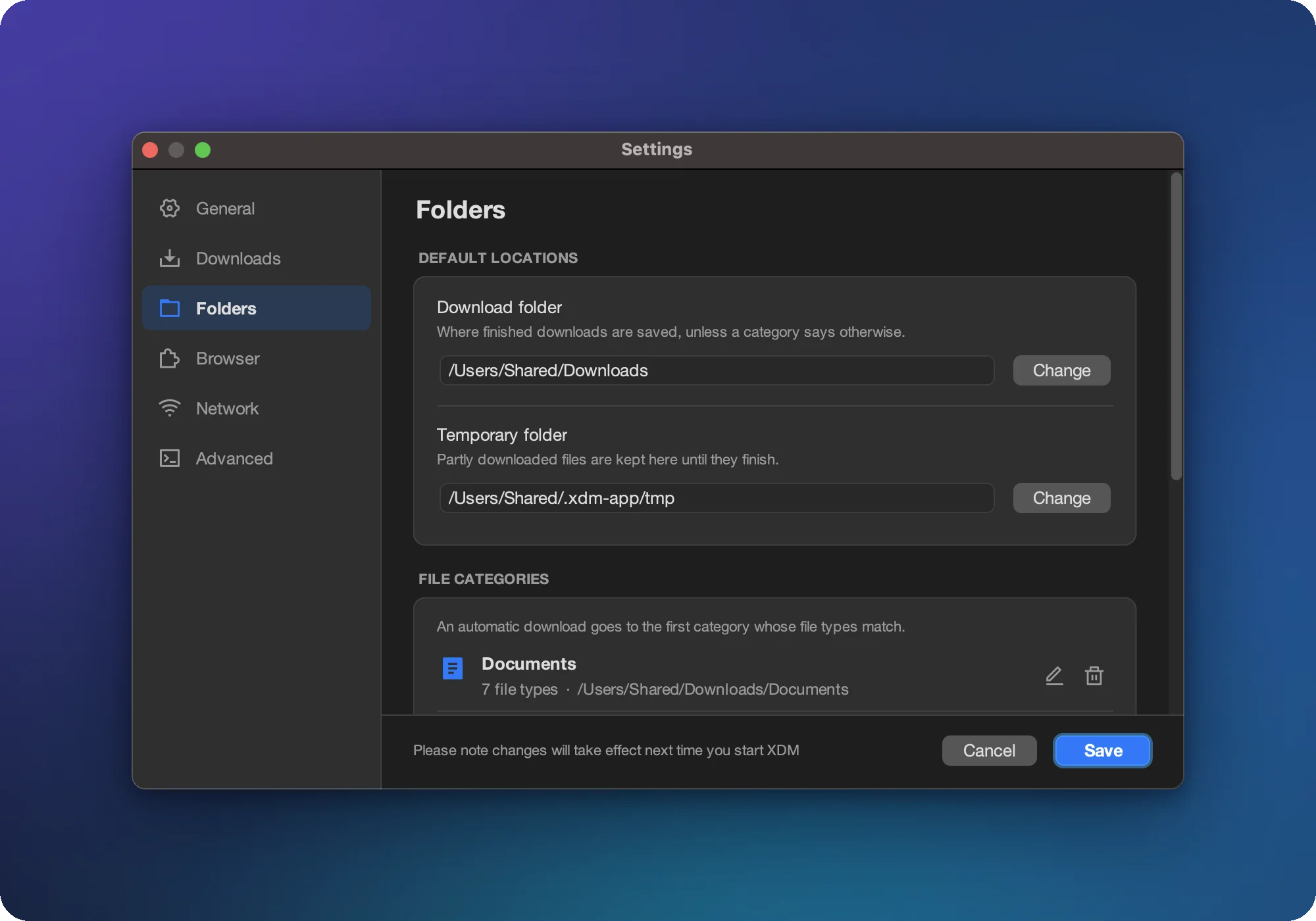
Categories: automatic folders by file type
XDM ships with categories such as Documents, Compressed, Music, Video and Programs. Each has
a list of file extensions and its own folder. When you download movie.mp4, XDM finds the first category
whose types match (Video) and offers that category’s folder in the Save in box.
The same categories appear in the main window’s sidebar, so you can filter the list by type.
Add or edit a category
- Open Settings → Folders and find File categories.
- Click Add category, or Edit on an existing one.
- Enter a Name, the File types (comma separated, e.g.
mp4, mkv, webm), choose a Folder and an Icon. - Save. New downloads of those types use the new folder.
Good to know
Renaming or deleting a category doesn't move files you've already downloaded. With no categories at all, every download goes to the download folder.
The temporary folder
While a file downloads, its parts live in the temporary folder (Settings → Folders → Temporary folder). When the download completes, XDM moves the file to its destination.
- Put the temporary folder on a drive with plenty of space. It must hold the whole file.
- If the temporary folder and the destination are on different drives, XDM copies the finished file instead of moving it, which takes a little longer for big files. XDM shows a note when this applies.
Overwrite or keep both?
If a file with the same name already exists, XDM adds a number to the new file’s name. Turn on Settings → General → Overwrite existing files to replace the old file instead.