
Three ways to start a download
- Click a download link in your browser. With the extension installed, XDM takes over supported file types automatically.
- Right-click a link → Download with XDM for links the browser wouldn’t normally download (or file types you excluded).
- Paste a link into XDM: click New in the toolbar. If the clipboard holds a URL, it’s filled in for you.
The New download window
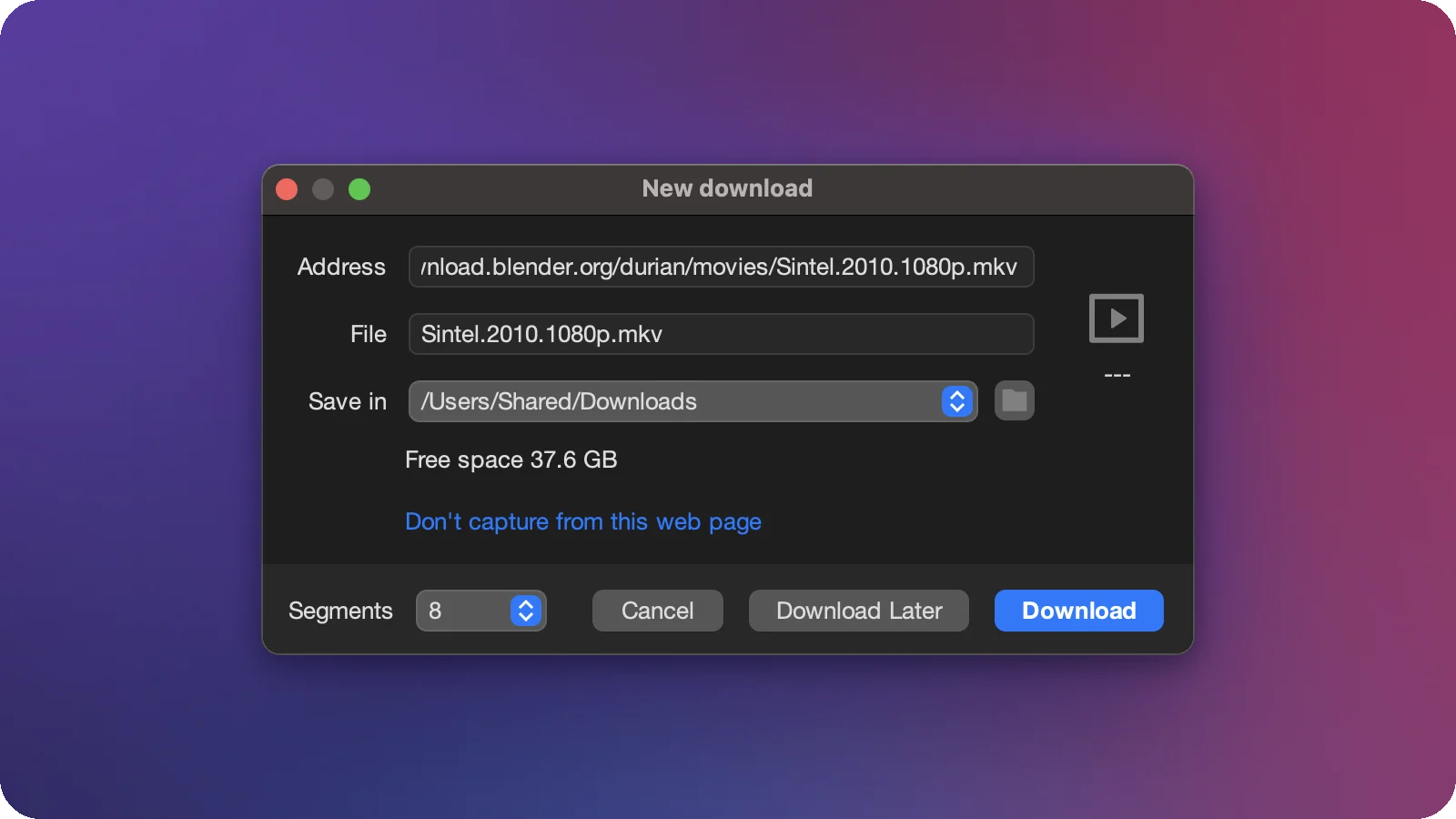
| Field | What it does |
|---|---|
| Address | The download URL. Edit it if you pasted the wrong link. |
| File | The file name to save as. XDM takes it from the server or the link. |
| Save in | The destination folder. By default XDM chooses a folder by file type (Video, Music, Programs …). See categories. |
| Segments | How many parts XDM downloads at once for this file. More segments are usually faster. |
| Don’t capture from this web page | XDM ignores downloads from this page from now on. |
| Download | Starts now. |
| Download Later | Adds it to the list without starting it. XDM asks whether you want to schedule it. |
Skip this window
Turn on Settings → General → Start downloads immediately and captured downloads begin without asking.
While it downloads
The progress window shows the speed, time left and a live map of the segments being downloaded.
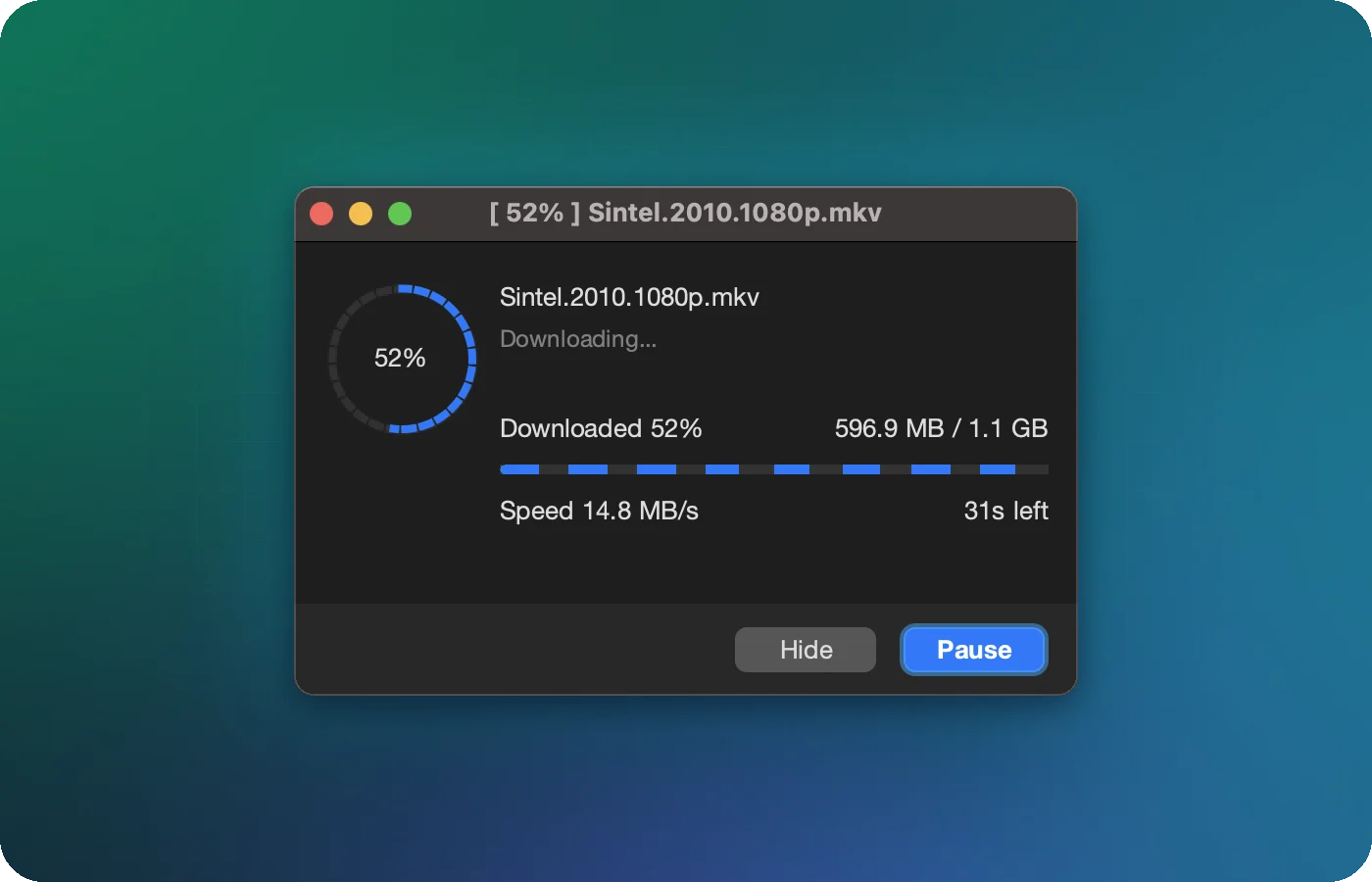
- Pause stops the download and keeps everything received so far. Resume continues later, even after a restart, as long as the server supports it.
- Hide closes the window. The download keeps going. Reopen it via right-click → Show progress.
- Don’t want a window for every download? Turn off Settings → General → Show progress window.
When it’s finished
XDM moves the file from its temporary folder into the destination and tells you, with a dialog or a system notification, whichever you chose under Settings → General → Notify me with. The Download Complete dialog has buttons to Open the file or Open folder.
Find downloads in the list
- The left sidebar filters by status (All Downloads, Incomplete, Completed) and by type (Documents, Compressed, Music, Video, Programs).
- The search box at the top right searches file names.
- The sort button orders the list by name, size or date.
- The clear button (bin icon) removes finished, paused or failed entries, optionally deleting the files too.
If something goes wrong, the download error guides explain each message.