
Start a batch
You can start a batch in three ways:
- From a list of links: open ☰ → Batch download and paste the links into the box, one link per line.
- All links on a page: in the browser, right-click → Download all with XDM…, or use Grab all links for this page… in the extension popup.
- Only some links: select text containing links on a page, right-click → Download selected links with XDM….
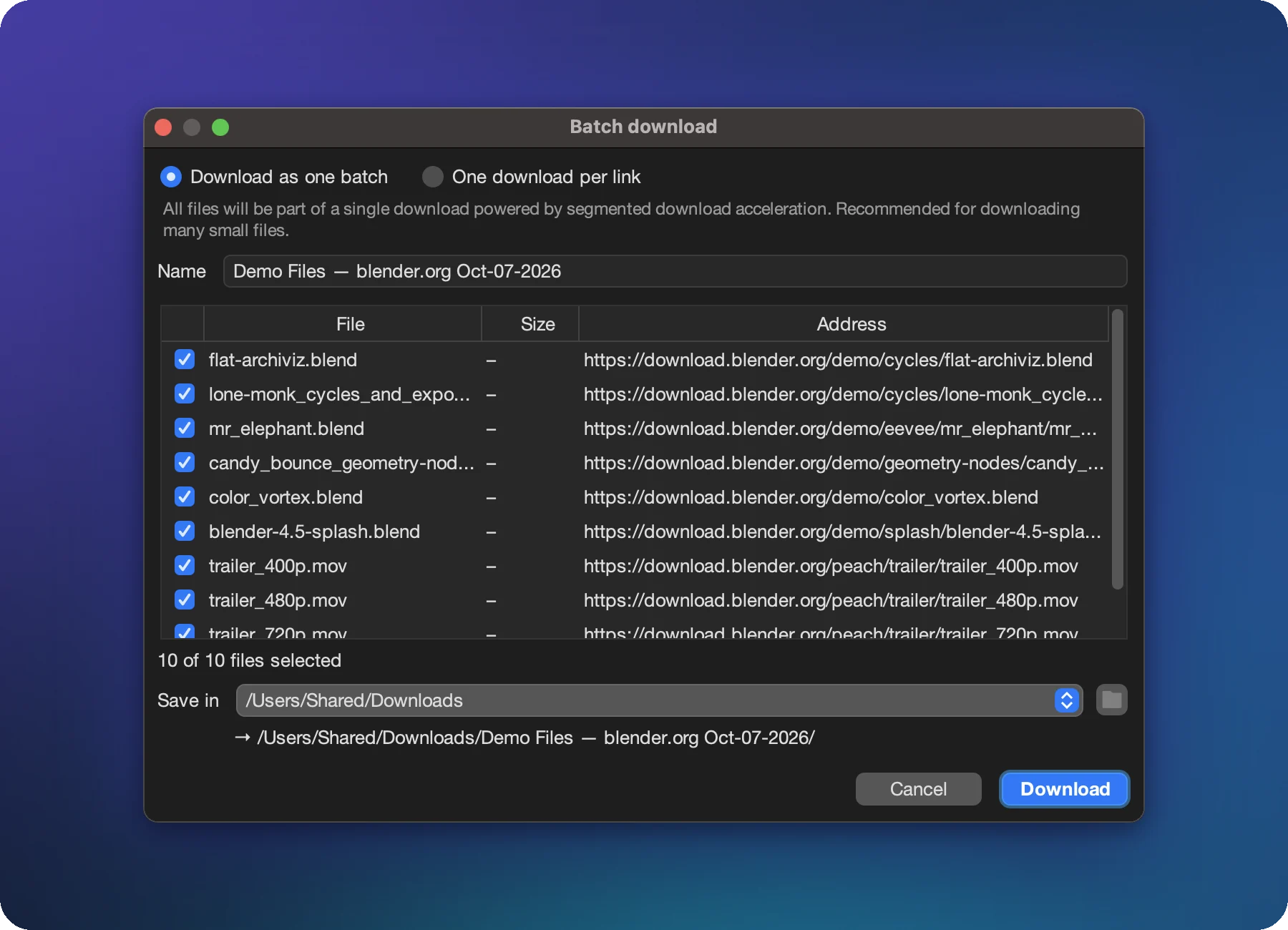
One batch, or one download per link?
| Mode | Best for | How it works |
|---|---|---|
| Download as one batch | Many small files (images, documents, a dataset) | A single entry in the list. Files download in parallel into a folder named after the batch. Progress shows Files: 120 / 500. |
| One download per link | A few large files | Each link becomes its own download with its own segments, progress and retry. |
Untick links you don’t want. The dialog shows how many of the files are selected.
Name and folder
A batch saves into <Save in>/<batch name>/. XDM checks the folder doesn’t already exist with other files
in it, so batches never mix.
When some files fail
A batch finishes even if a few files fail, and its icon shows a warning. Right-click it and choose Retry failed files to try just those again, or open Properties → Files to see each file’s status (Done, Waiting, Failed).
Be kind to servers
Downloading thousands of files quickly can trip rate limits. If many files fail, lower Connections per download in Settings → Downloads and retry the failed ones.