
What the extension does
- Takes over downloads. When the browser starts a download of a supported file type (archives, installers, disk images, documents, audio and video), the extension cancels it in the browser and sends it to XDM together with the cookies and headers the site needs.
- Finds videos. While you watch a video, the extension spots the media streams the page plays. The XDM toolbar icon shows how many it found. Click it to pick a format and download.
- Adds right-click options: Download with XDM, Download Image with XDM, Download all with XDM… and Download selected links with XDM…
The extension only talks to the XDM app on your own computer (127.0.0.1). It doesn’t send your data
anywhere else. See the privacy policy.
Install it
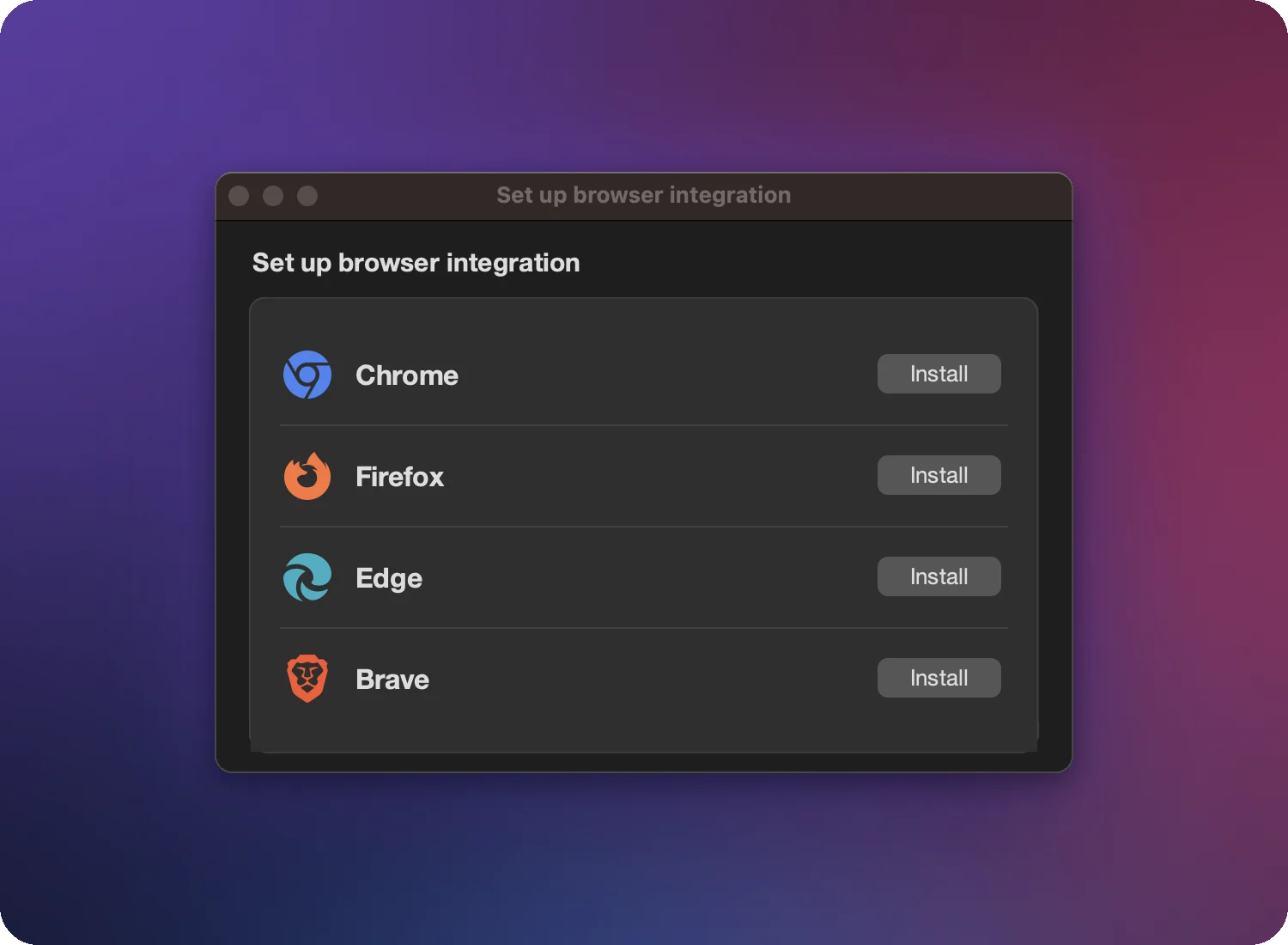
- Start XDM. On first start it opens Set up browser integration.
- Click Install next to your browser. XDM opens the XDM install page for that browser, in that browser.
- Click the store button on that page (for example Add to Chrome). The store opens in a new tab.
- Click Add to Chrome (or Get / Add to Firefox) and accept the permissions.
- Pin the XDM icon: click the puzzle-piece icon in the toolbar and pin XDM Integration Module. The icon is where detected videos appear.
Install pages for each browser
Chrome · Edge · Firefox · Brave · Opera, Vivaldi and other Chromium browsers
Edge, Opera and Vivaldi can install extensions from the Chrome Web Store. In Opera, first add the Install Chrome Extensions helper.
Check that it works
- Make sure XDM is running (check the tray or menu-bar icon).
- Click a download link for a ZIP or installer on any website.
- XDM's New download window appears instead of the browser's download bar.
If nothing happens, see XDM doesn’t capture downloads.
Messages in the extension popup
| Message | Meaning |
|---|---|
| XDM isn’t running | Start XDM. The popup’s Launch XDM button opens it. |
| Site access is restricted | The browser limits the extension to certain sites. Click Allow on all sites so it can see downloads everywhere. |
| Browser monitoring is turned off | You switched monitoring off in the popup. Switch it back on. |
| XDM stays off YouTube | XDM doesn’t capture videos or links on YouTube. Downloads there are left to the browser. |
Choose what gets captured
In XDM, open Settings → Browser:
- File types: extensions XDM takes over from the browser (ZIP, EXE, ISO, MP4 …). Remove a type, for example PDF, to let the browser handle it.
- Video types: media formats offered as video downloads.
- Blocked sites: hosts XDM never captures from.
- Only detect videos larger than: hides small clips such as ads and previews.
To let one download go to the browser instead, click Cancel in XDM’s New download window, or choose Don’t capture from this web page.