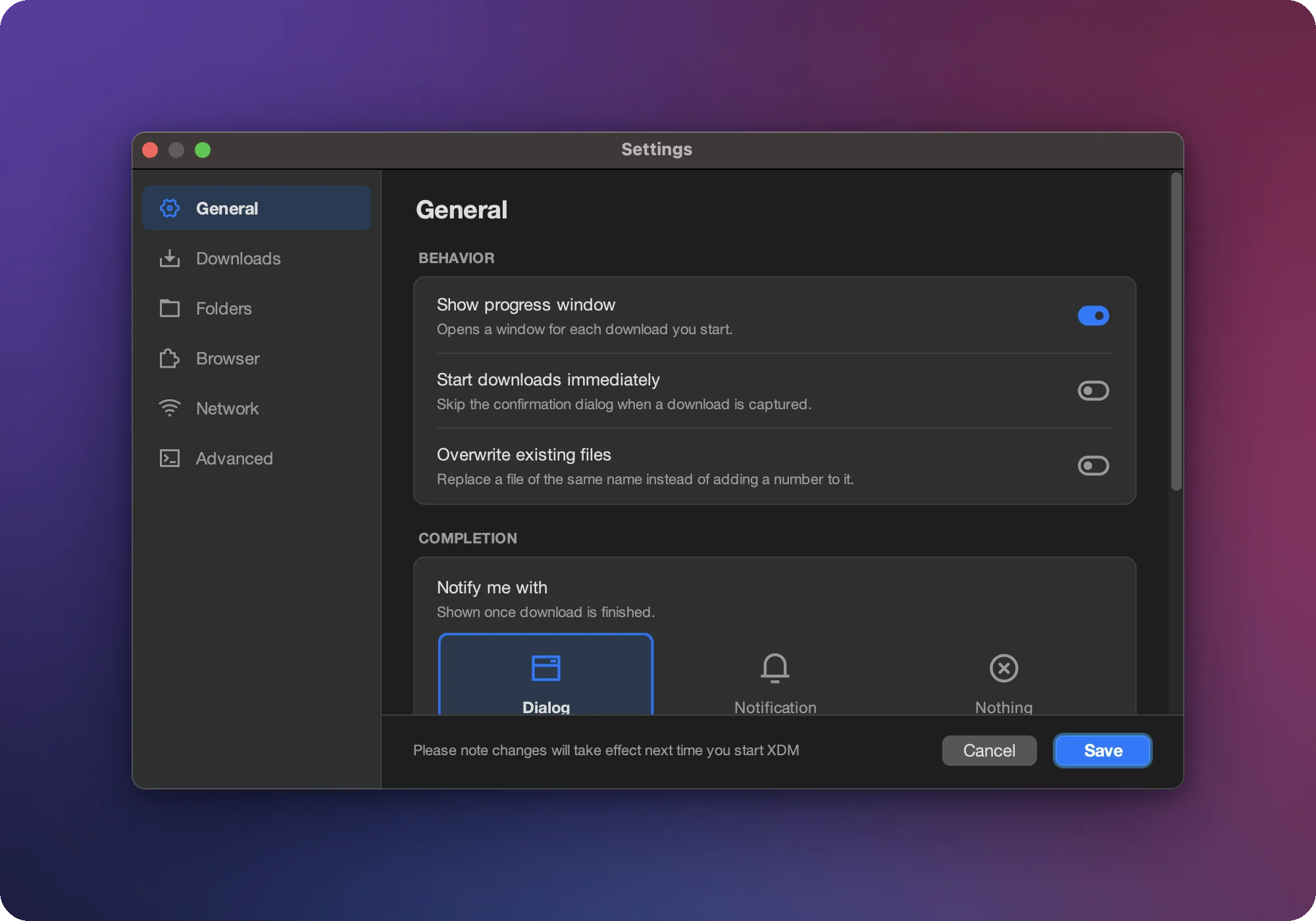
 Most changes apply the next time XDM starts.
General
| Setting |
What it does |
| Show progress window |
Opens a progress window for each download you start. |
| Start downloads immediately |
Skips the New download window when the browser hands over a download. |
| Overwrite existing files |
Replaces a file with the same name instead of adding a number. |
| Notify me with |
What happens when a download finishes: Dialog, Notification or Nothing. |
| Theme |
Light or dark. |
| Language |
The language of XDM’s menus and dialogs (applies after a restart). |
Downloads
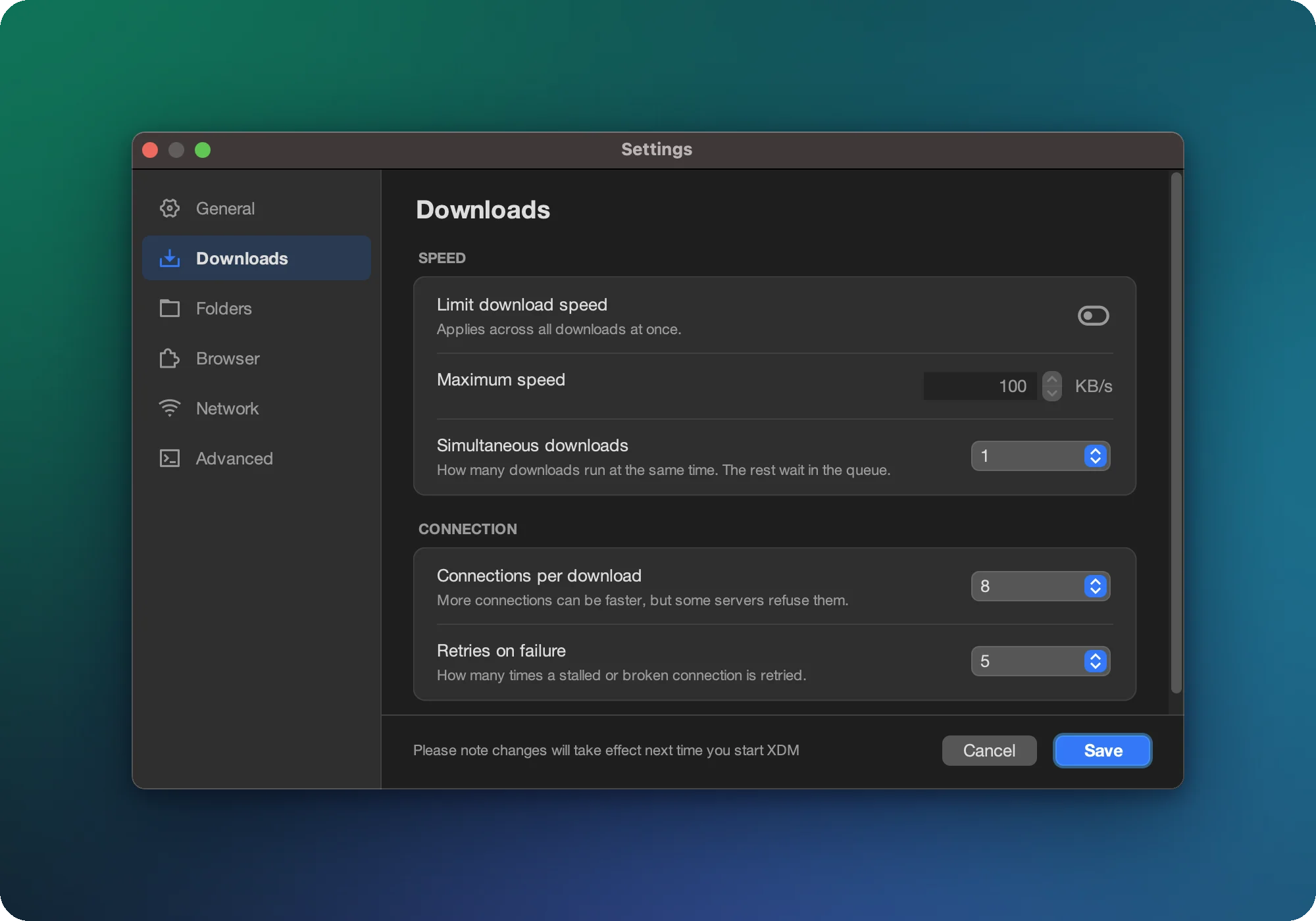
| Setting |
What it does |
| Simultaneous downloads |
How many downloads run at once. The rest wait. |
| Connections per download |
Parallel connections per file. More can be faster, but some servers refuse them. |
| Retries on failure |
How often a stalled or broken connection is retried. |
| Limit download speed |
A total speed cap in KB/s across all downloads. |
Folders
| Setting |
What it does |
| Download folder |
Where finished downloads are saved unless a category says otherwise. |
| Temporary folder |
Where partly downloaded files are kept until they finish. |
| File categories |
Automatic folders per file type. See Folders & categories. |
Browser
| Setting |
What it does |
| Supported browsers |
Install the XDM extension for each browser you download from. |
| File types |
Downloads with these extensions are captured from the browser. |
| Video types |
Media with these extensions is offered as a video download. |
| Blocked sites |
Hosts XDM never captures downloads from. |
| Only detect videos larger than |
Smaller clips are ignored, so ads and previews stay out of the list. |
| Use the server’s file timestamp |
Keeps the server’s modified date instead of the download time. |
Network
| Setting |
What it does |
| Proxy |
No proxy, HTTP proxy or SOCKS proxy, with optional login. |
| Read timeout |
How long to wait for data before retrying a stalled connection. |
| Ignore certificate errors |
Turns off HTTPS certificate checks. Not recommended. |
Advanced
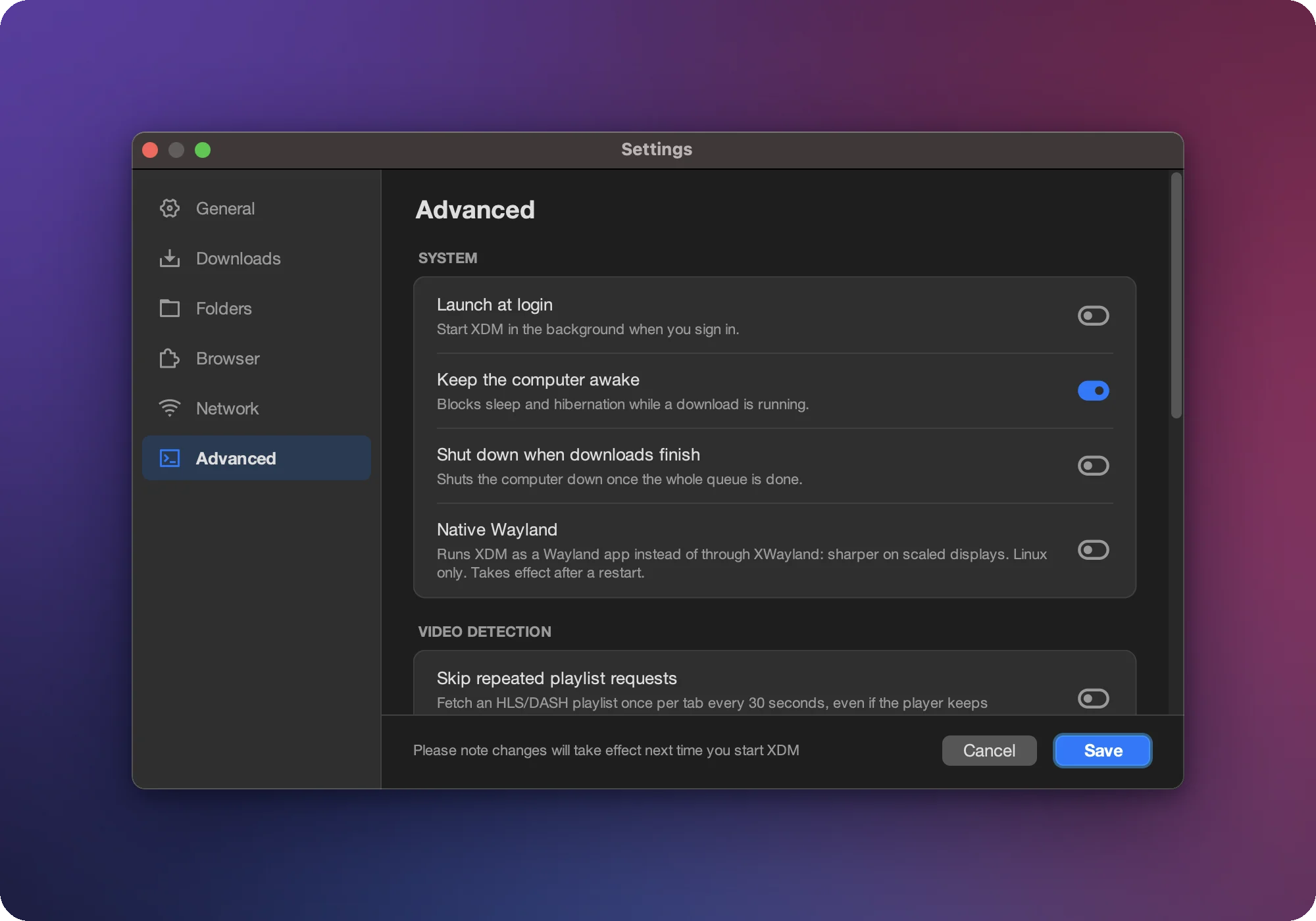
| Setting |
What it does |
| Launch at login |
Starts XDM in the background when you sign in. |
| Keep the computer awake |
Blocks sleep while downloads are running. |
| Shut down when downloads finish |
Turns the computer off when the whole queue is done. |
| Run a command when downloads finish |
Runs your command for completed downloads; %file% is replaced with the file path. |
| Scan downloads with an antivirus |
Passes each finished file to the scanner you configure. |
| Mark downloaded files as coming from the internet |
Recommended. Lets Windows SmartScreen and Office Protected View check files, as for browser downloads. |
| Skip repeated playlist requests |
Helps with video sites that reject repeated HLS/DASH playlist requests. |
| Native Wayland (Linux) |
Runs XDM as a Wayland app for sharper scaled displays. |
| Full JIT compiler (Linux) |
Faster video processing at the cost of more memory. |
