
Proxy
Open Settings → Network. Under Proxy, choose how XDM connects:
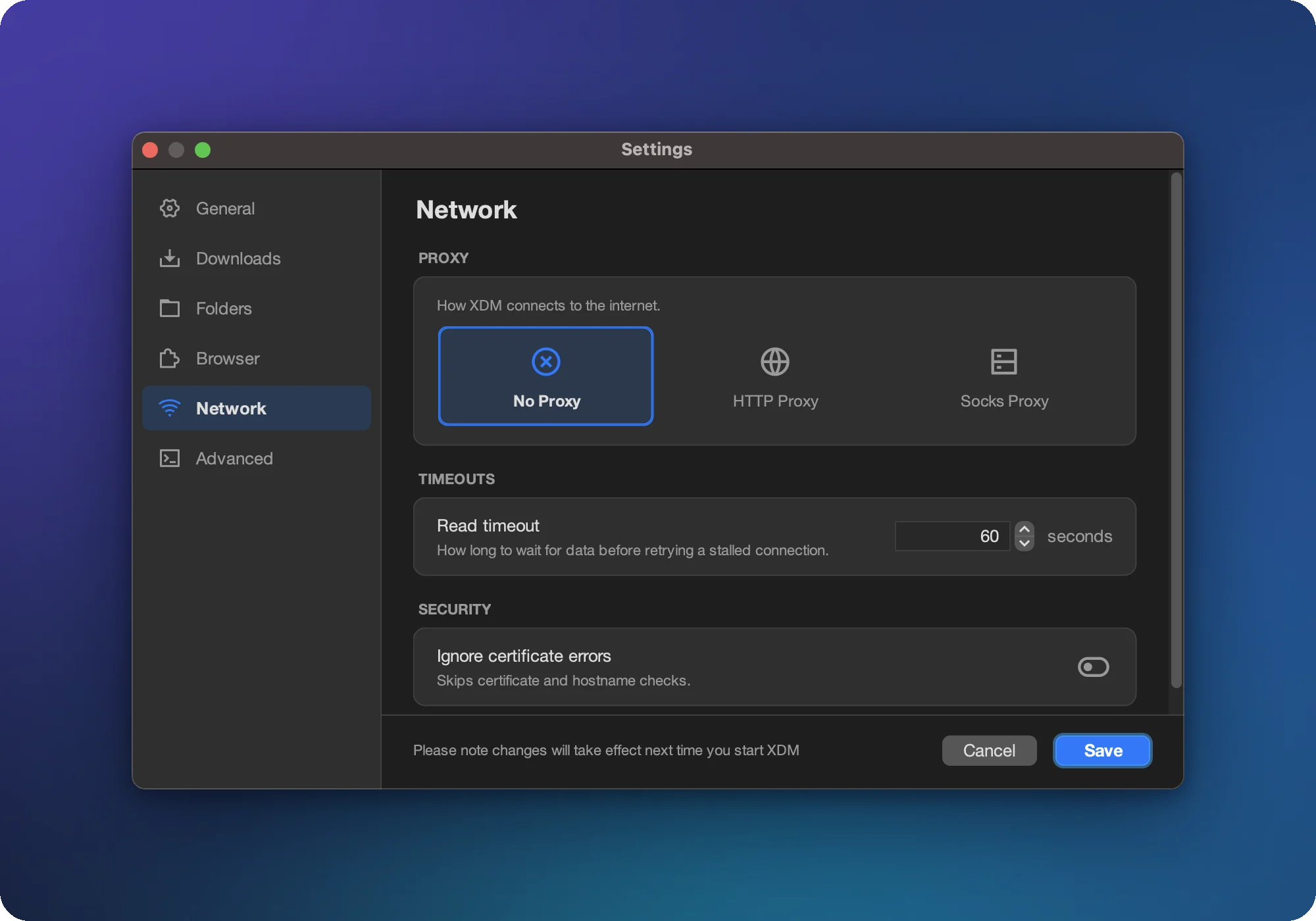
| Option | Use when |
|---|---|
| No Proxy | Home networks and most connections (default). |
| HTTP Proxy | Your company, school or ISP requires a web proxy. |
| Socks Proxy | You use a SOCKS proxy, e.g. an SSH tunnel (ssh -D) or a privacy proxy. |
Enter the proxy Host and Port, plus a Username and Password if the proxy needs a login. If the proxy asks for credentials during a download, XDM prompts for them.
Find your browser's proxy
If the browser works but XDM can't connect, copy the proxy settings from your system's network settings (Windows: Settings → Network & internet → Proxy; macOS: System Settings → Network → Details → Proxies).
Timeouts
Read timeout is how long XDM waits for data on a connection before it gives up on it and retries. On slow, mobile or satellite links, raise it to avoid needless reconnects. The number of retries is set in Settings → Downloads → Retries on failure.
Security: certificate checks
XDM verifies HTTPS certificates like your browser does. The Ignore certificate errors switch turns this off for every download. Only use it temporarily, on a network you trust. See TLS connection error for safer fixes.
Website logins
If a site asks for a user name and password (HTTP authentication), XDM shows an Authorization required prompt and uses the details for that download.