
Run downloads one by one
Settings → Downloads → Simultaneous downloads sets how many downloads run at the same time. The rest wait in line and start automatically as others finish. The default is 1, so files download strictly one after another. Raise it to run several downloads in parallel.
Schedule a download
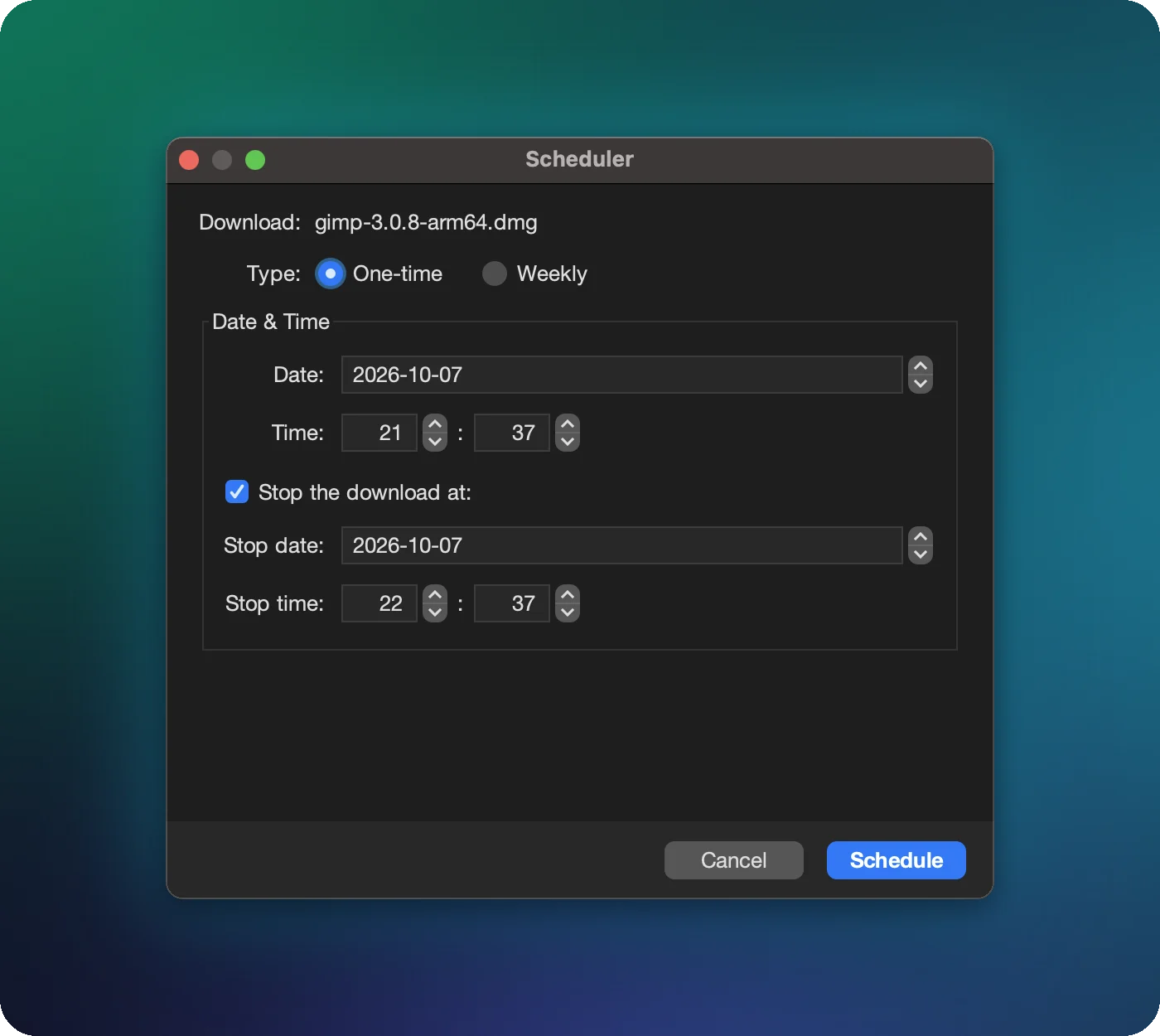
- Add the download without starting it: click Download Later in the New download window and answer Yes to “Do you want to schedule this download?”. For a download that's already in the list, pause it, then right-click it → Schedule.
- Choose the type:
- One-time: pick a date and time.
- Weekly: pick a time and the days to repeat on.
- Optional: a stop time. Tick Stop the download at and choose when to pause it, for example when your off-peak data window ends. A one-time schedule can stop on a later date, so a download can run across midnight.
- Click Schedule.
How start and stop behave
- Start works like pressing Resume: the download joins the line and begins when a slot is free.
- Stop works like Pause, not cancel: everything downloaded is kept, and the next scheduled start (or you) continues from there.
- XDM must be running at the scheduled time. Turn on Settings → Advanced → Launch at login so it’s always there.
Overnight downloads
Combine the scheduler with these options in Settings → Advanced:
- Keep the computer awake: blocks sleep while a download is running.
- Shut down when downloads finish: turns the computer off once everything is done.